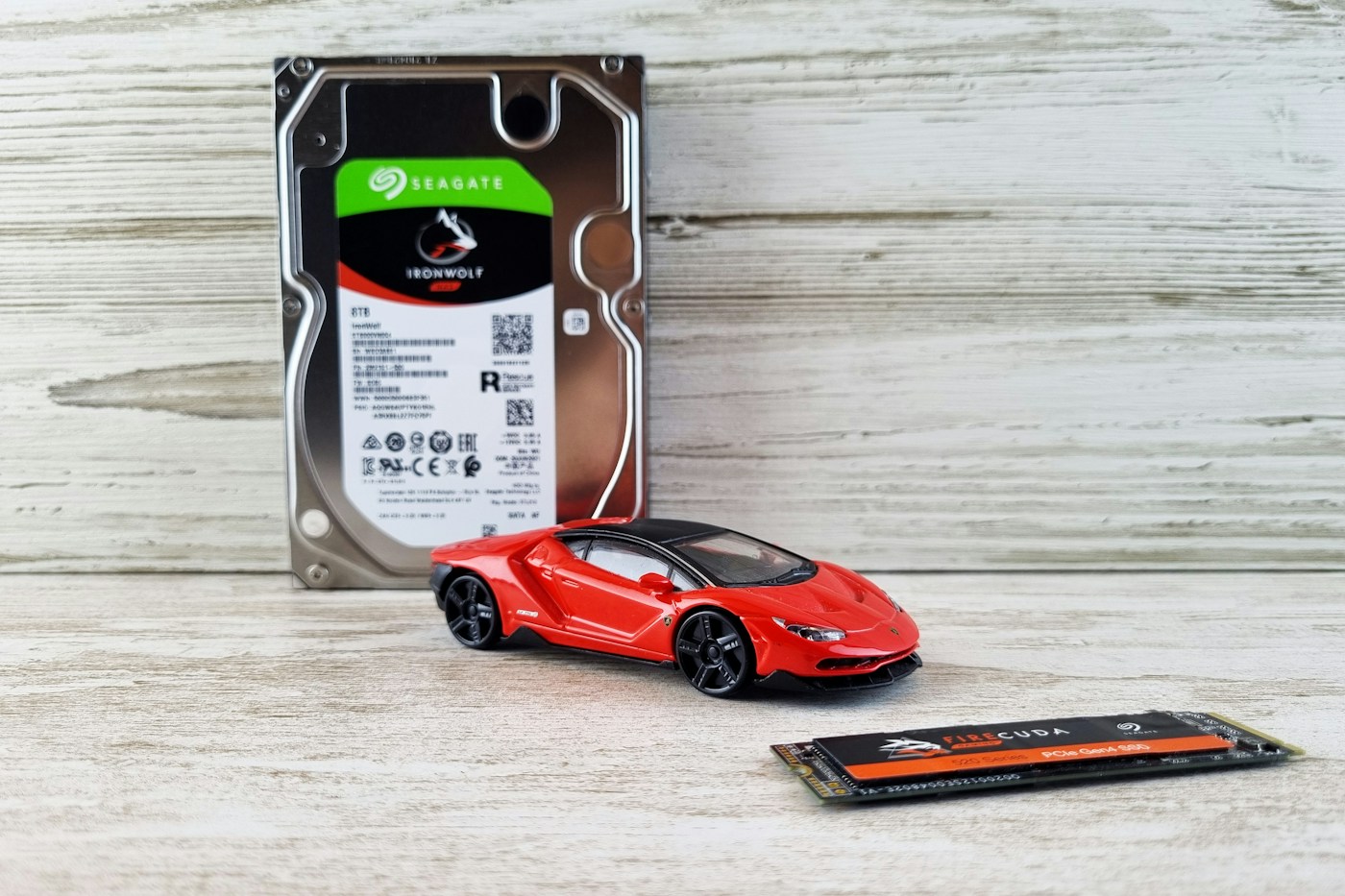
What is the main difference between an SSD and HDD?
An HDD stores information magnetically on spinning platters, with heads that move to read and write. An SSD uses flash memory and does not need that mechanical movement to access data. Both can store the operating system, applications and files when a computer is switched off. Their different operation affects performance, physical design and how they are used.
Choosing between them means more than finding the biggest number on a box. A computer may benefit greatly from an SSD for its system while still using an HDD for large collections of files. An external backup drive has different priorities from an internal working drive. Start with the task and equipment before comparing models or capacity, and keep data protection separate from the purchase itself.
Why does an SSD often make a computer feel faster?
Many everyday tasks involve finding and opening small pieces of information scattered around a drive. On an HDD, moving components add time to those accesses. An SSD can respond with lower latency, which may improve system startup, application launching and browsing large collections of files. You can notice this without ever transferring an enormous video.
Changing the drive does not solve every kind of slowness. Insufficient RAM, an overloaded processor, a slow network and background programs can still limit the experience. If a webpage is delayed by the internet connection, an SSD cannot raise your connection’s contracted speed. Identifying what is slow helps avoid buying storage to solve a problem that belongs to another component or a remote service.
| Aspect | HDD | SSD |
|---|---|---|
| Reading and writing | Magnetic mechanism with moving parts | Flash memory without a moving read mechanism |
| Many small accesses | Mechanical movement adds latency | Low latency benefits systems and applications |
| Drive noise | May produce operating noise | No noise from platters or heads |
| Transport during use | Needs care around movement and impacts | No moving parts, but damage remains possible |
| File protection | Needs independent copies | Needs independent copies |
When does an HDD still make sense?
When the priority is storing a lot of content that is accessed less frequently, an HDD can be practical. Older photographs, video libraries and a local copy may require capacity more than fast response. Compare the total cost for the space needed, including an external enclosure, power supply and connections when these are not included. There is no fixed price relationship that applies to every capacity.
A mechanical drive needs care during operation and transport. Place it on a stable surface and avoid moving it while it is working. A drive suitable for general storage is not automatically appropriate for every server or continuous workload. The manufacturer’s intended use matters too. For a compatible computer’s operating system and applications, the quicker response of an SSD generally carries greater weight.
SATA, NVMe and M.2 describe different things
M.2 describes a physical form factor. NVMe is an access protocol commonly used over PCIe, while SATA identifies a different storage interface. Comparing “M.2 versus SSD” therefore mixes categories: an M.2 drive can itself be an SSD. M.2 SATA and M.2 NVMe modules both exist, but a computer’s socket may support only one of them.
Shape and fit do not establish electrical or functional compatibility. Check the manual for interface, accepted length and restrictions. In the name M.2 2280, the numbers indicate approximately 22 millimetres in width and 80 in length. A laptop designed for another length may lack the necessary mounting point. Never force a module or assume that a passive adapter can convert any storage protocol into another.
How to check compatibility before buying
Record the complete computer or motherboard model, rather than only the brand. Consult the maintenance manual and official specifications to establish whether storage is replaceable, which interface it uses, the permitted dimensions and whether a free slot exists. Some devices have soldered storage; others have space, thickness or cooling restrictions that cannot be established from a promotional picture.
For a 2.5-inch drive, check the connection and thickness. For M.2, check length, protocol and supported configuration. Also establish whether occupying a slot disables a shared port. Write these conditions on a short requirements list before searching for products. If the manual leaves something unclear, ask support using the exact model number. Confirming that a drive can work in the machine comes before choosing the desired capacity.
How much capacity do you actually need?
Open the system’s storage information and check the space occupied by files, applications and the operating system. Add what you expect to create or install rather than choosing only from today’s free space. Videos, projects and games can grow very differently from text documents. Allow room for updates and temporary work without turning a generic percentage into a universal requirement.
Advertised capacity and the amount displayed by the system can differ because of measurement units and space reserved for system or drive functions. That difference alone does not demonstrate a fault. Compare like with like and check the expected usable space. If you intend to move files to an external drive, include another copy in the plan: relocating the only original does not create protection against loss.
How to read speed specifications fairly
A sequential speed describes continuous reading or writing, a useful scenario for large files. It does not represent everything a computer does. Small-file response, queue depth, transfer duration and test conditions can produce different results. Compare measurements taken under equivalent conditions, and distinguish reading from writing. A single headline figure does not explain a whole workload.
Sustained performance also matters, rather than only a peak lasting a few seconds. Cache, temperature, free space and model characteristics can affect a long transfer. A fast drive on paper may be limited by the computer’s connection. Instead of searching for the highest isolated number, ask whether the job involves opening many applications, editing large projects or occasionally copying a library. Each task gives different importance to these indicators.
Can an external SSD match an internal drive?
The final speed depends on the whole connection: drive, enclosure or controller, cable, port and computer. USB-C describes the connector’s shape; it does not by itself guarantee a particular transfer speed. The same drive connected through an unsuitable cable or a slower port may perform far below its advertised best-case result. The link can be the limiting component.
Check power requirements and file-system compatibility with the devices you intend to use. Formatting can erase data, so do not use it as an initial experiment on a drive holding the only original. Test a large-copy workflow with non-essential files first, then verify that the destination can be read. Use safe removal where applicable and avoid disconnecting a cable during a write operation.
What do endurance, warranty and TBW mean?
SSDs have write-endurance limits, often expressed as TBW: the total terabytes written under specified conditions. That is not an exact countdown to the day of failure. A warranty may combine a time period with a written-data limit, ending when the specified condition is reached. Read the terms for the particular model and capacity rather than applying another drive’s figures.
HDDs can also fail, while an SSD without moving parts is not indestructible. Silence does not prove that data is protected. Handling, temperatures and workloads should follow each product’s instructions. Health indicators can help identify problems but cannot promise advance notice of every failure. A warranty may replace the drive without recovering files, so a copy strategy needs to exist independently.
How to prepare a replacement without risking files
Before intervening, make an independent copy and check that the saved files open. Define the aim: cloning an existing installation and installing a fresh system are different processes. Record required account and recovery information, especially where encryption is involved. A copy of photographs alone is not the same as a complete system image or a plan for restoring applications.
Follow the equipment manual and the chosen tool’s procedure. Clearly identify source and destination, because reversing them during a copying operation can destroy the content you wanted to preserve. If you are unfamiliar with opening the machine or restoring a system, use assistance. Keep the original drive intact until the new startup and files have been checked, then handle its personal data appropriately.
A practical decision starts with three questions
First, do you want to improve system response, add capacity or create copies? Second, which form factors and interfaces does the equipment support? Third, what space, connections and data protection will real use require? These answers turn a vague choice between acronyms into concrete requirements. They can also show that two drives serving different purposes are more useful than one presumed solution.
Consider an older compatible laptop with an HDD: an SSD for the system and an external copy can meet separate objectives. A computer already fitted with an SSD might instead need only archive space. Do not assign a benefit to a technology without linking it to the problem. Choose by compatibility, workload, capacity and recovery rather than treating speed or size as a complete answer.
Frequently asked questions
Is an SSD the same as RAM?
No. An SSD provides persistent storage for files and the system. RAM is working memory; increasing one does not automatically replace increasing the other.
Are all M.2 SSDs NVMe?
No. M.2 is a form factor, and both SATA and NVMe modules exist. Check supported protocols and lengths in the manual.
Can an NVMe SSD work in an M.2 SATA socket?
Do not assume it can. Physical fit does not establish protocol support. The socket and computer must support the drive.
Will an SSD make the internet faster?
It cannot raise your connection’s contracted speed. It can improve local tasks while a network limitation remains.
Does USB-C guarantee fast transfers?
No. The port, cable, controller and drive must support the intended transfer mode.
Is moving everything to an external drive a backup?
If you delete the original and retain only the external copy, you again have one copy. Keep independent copies and test recovery.
Does a high TBW rating remove the need for backups?
No. TBW describes write endurance under particular conditions and may form part of a warranty; it cannot predict or prevent every cause of data loss.