Where should you start with home-network security?
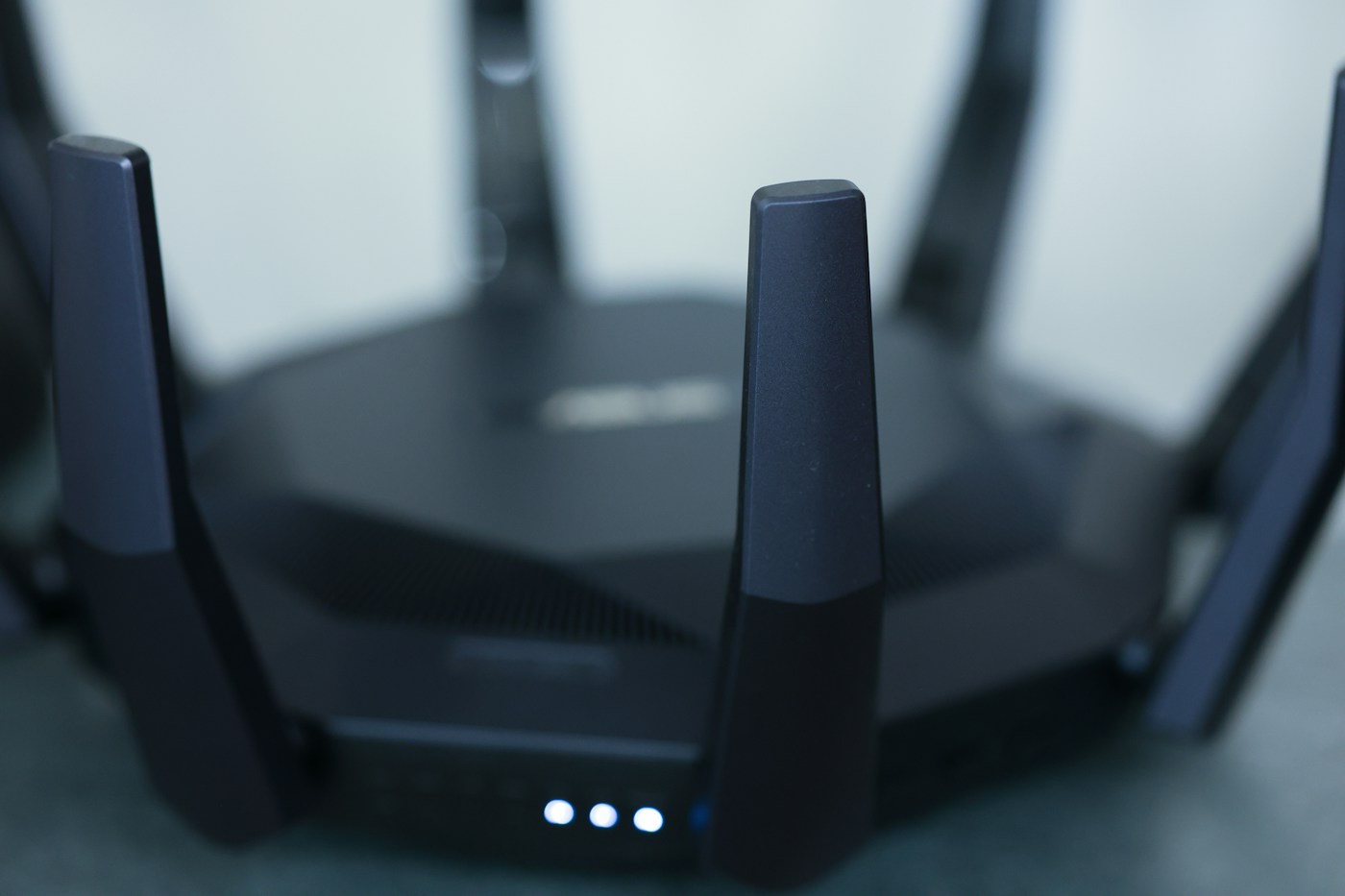
Identify the router, find its official manual and review the configuration you actually use. Priorities are your own credentials, appropriate wireless protection and updated equipment. You do not need a collection of extra applications to begin. This guide organises the review into stages without assuming identical menus on every model. Work only on a network you administer or have permission to manage. The aim is to reduce common risks while keeping access functional, not to promise an invulnerable network. The photograph illustrates equipment rather than recommending a particular model.
What information should you collect before changing settings?
Record manufacturer, model and hardware revision where applicable. If the router belongs to your provider, establish who manages updates and which support channel to use. Keep the manual and identify how to recover access if a change goes wrong. Choose a time when interruptions will not disrupt work or important calls. List your devices so you can test them afterwards. Do not post label photographs or share credentials in forums: describe a problem without disclosing access information. A small preparation sheet helps prevent random changes and makes later questions easier to explain.
Is the Wi-Fi password the same as the admin password?
They serve different functions. One connects devices to the network; the other opens the router’s settings. FTC guidance recommends reviewing both rather than treating one change as a complete solution. Use distinct credentials and store them appropriately. When changing network access, prepare to reconnect your equipment with the new password. Never use an article’s example phrase as your real credential. If you do not recognise the administration method, consult the manual rather than trying sites that imitate the manufacturer. Knowing which credential you are changing helps explain the next step.
Which wireless-security option should you look for?
Microsoft guidance favours WPA3 when both router and devices support it. Check the manual for available options and compatibility with equipment you depend on. WPA2 may be needed in compatible configurations; old WPA and WEP should not be confused with current protection options. Record the chosen setting and test one device before proceeding to the others. Similar-looking abbreviations do not imply equivalent security. If only old options appear, seek support information for the model rather than installing files from unknown sources. Avoid changing an unfamiliar compatibility setting without understanding its effect.
How can you review updates without choosing the wrong file?
Use manufacturer or provider support for the exact model and follow its update instructions. Do not use a file meant for another device because its casing looks similar. If automatic updates exist, establish how they work and whether they are enabled. Do not deliberately interrupt the manufacturer’s prescribed process. A maintenance note can record the review date and what was confirmed without putting secrets in a shared document. The purpose is repeatable maintenance: finding a version number through search does not replace identifying the correct equipment and support route.
Could a guest network be useful?
It can provide visitor access without distributing the main network credential. But a setting called ‘guest’ does not remove the need to check isolation and your model’s options. First decide what you want to allow: internet access may be enough, whereas access to a local printer is a separate requirement. Test with your own device before giving instructions to visitors. Keep the name recognisable without unnecessary personal information. A configuration with a clear purpose is easier to maintain than several networks created without deciding who should use them or what they should reach.
Should you change remote access and automatic features?
Security recommendations include limiting remote administration and reviewing convenience features that are unnecessary. Before disabling an option, identify its purpose in your situation and follow the documentation. Do not change many features at once: if something fails, discovering the cause becomes harder. On provider-managed equipment, distinguish user-controlled features from service-maintenance functions. Ask support to clarify when that boundary is unclear. A careful basic review does not require inventing an advanced configuration. Record what you intended to change and what function you tested afterwards.
How can you check that the review succeeded?
After each change, test a concrete activity on your own device: opening a page, making a call or using a required service. Confirm you can return to administration and sign out of the panel when finished. If an unfamiliar name appears in the device list, compare it with your equipment before assuming an intruder: displayed names may differ from everyday names. Keep a record of confirmed settings and unresolved questions. Testing one change at a time provides more useful information than restarting everything without a record of what changed.
What could a simple review routine look like?
Imagine a home with two phones, a laptop and a television. The first review might simply identify equipment, confirm credentials and check the protection option. Later, confirm support arrangements and test guest access if relevant. Make changes when you have time to reconnect devices and observe results. This is an organisation example, not a universal configuration. Return to the note when replacing a router, adding important equipment or receiving official maintenance guidance. A home network needs understandable decisions and follow-through rather than a single initial visit to its administration panel.
Frequently asked questions
Does changing the network name solve the problem?
No. A name identifies the connection but does not replace credentials, wireless protection or maintenance. It is not proof of security.
Does a strong password guarantee complete protection?
No. It is one part of the setup. The router and connected devices still need maintenance, and you should remain careful about fraudulent pages and messages.
Can I apply this guide to hotel Wi-Fi?
Do not change a network you do not administer. In hotels or workplaces, raise questions with the responsible person and follow the procedure for users.
Must I buy a new router?
Not automatically. First check support, updates and options on your existing equipment. If it no longer provides suitable protection, ask the provider or manufacturer about compatible alternatives.
What if I lose connection after a password change?
Check that you selected the right network and entered the new credential. Follow your model’s recovery instructions before resetting settings that may affect other services.